How to enable accessibility widget?
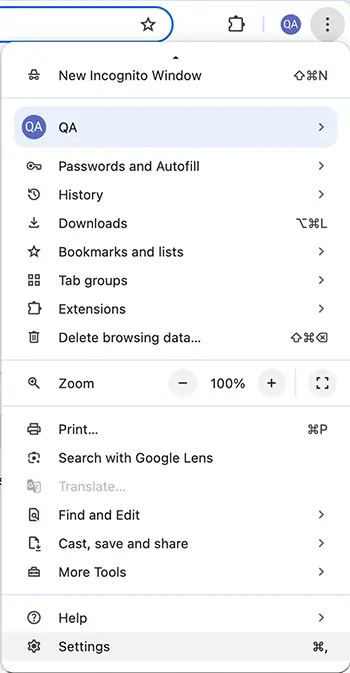
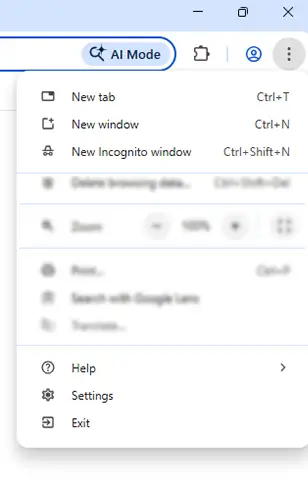
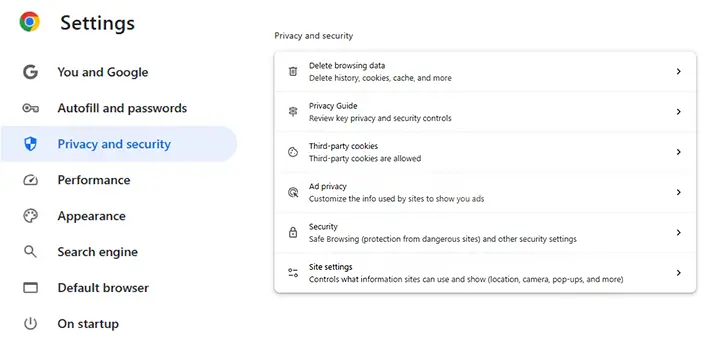
- Go to Settings
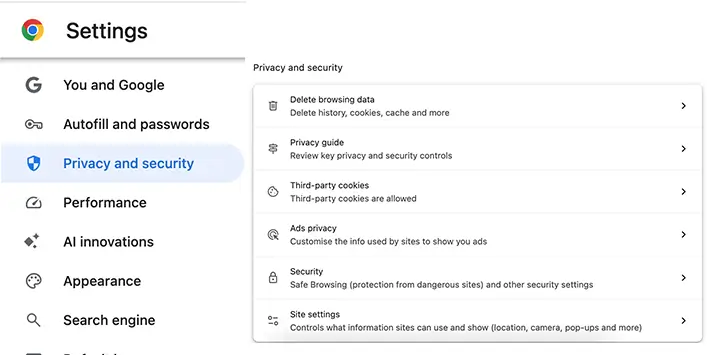
- Select Privacy & Security
- Click clearing browsing data
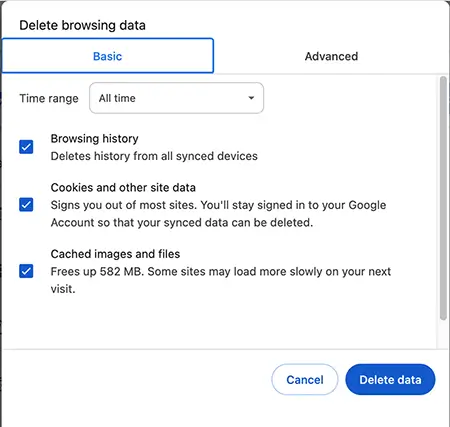
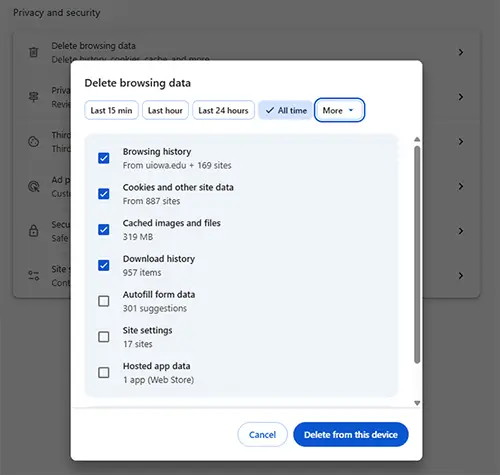
- Set the Time Range Select All time (or as needed)
- Check Cached images and files (You can leave “Browsing history” and “Cookies” unchecked if you only want to clear cache.)
- Click Clear Data (Delete from this device)
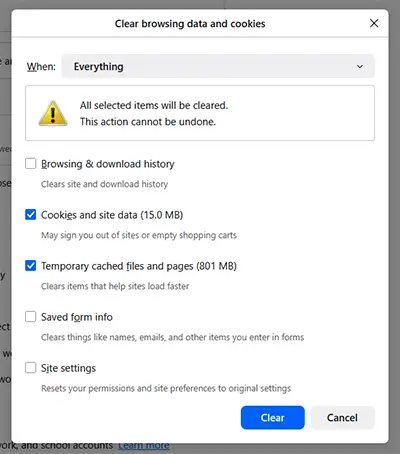
- Open Mozilla Firefox
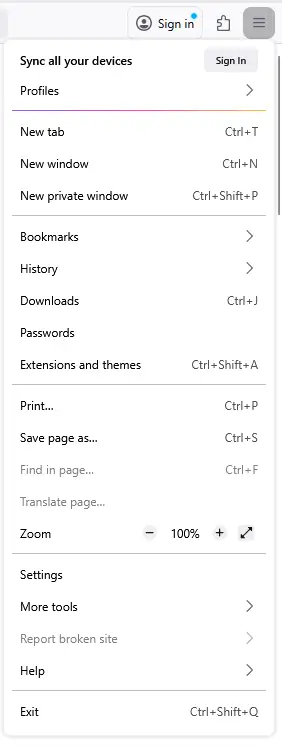
- Select Settings
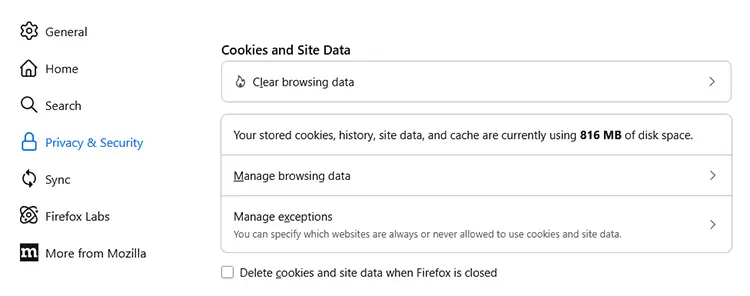
- Go to Privacy & Security
- Scroll to the Cookies and Site Data section
- Click Clear browsing data
- Check Cached Web Content (Uncheck Cookies and Site Data if you only want to clear cache.)
- Check Cached images and files (You can leave “Browsing history” and “Cookies” unchecked if you only want to clear cache.)
- Click Clear
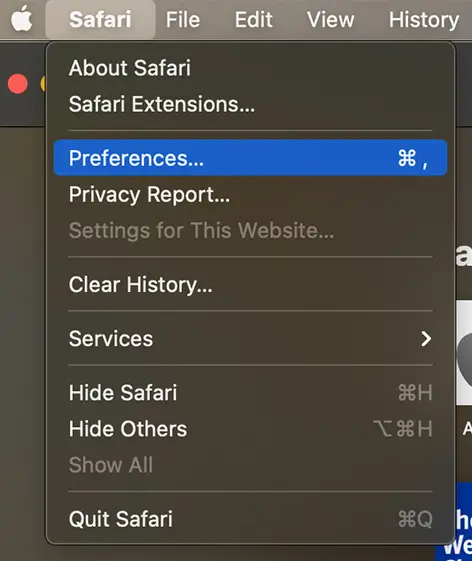
- Step 1: Enable the Develop Menu (One-Time Setup)
- Open Safari
- Click Safari in the top menu
- Click on Settings (or Preferences)
- Go to the Advanced tab
- Check “Show Develop menu in menu bar"
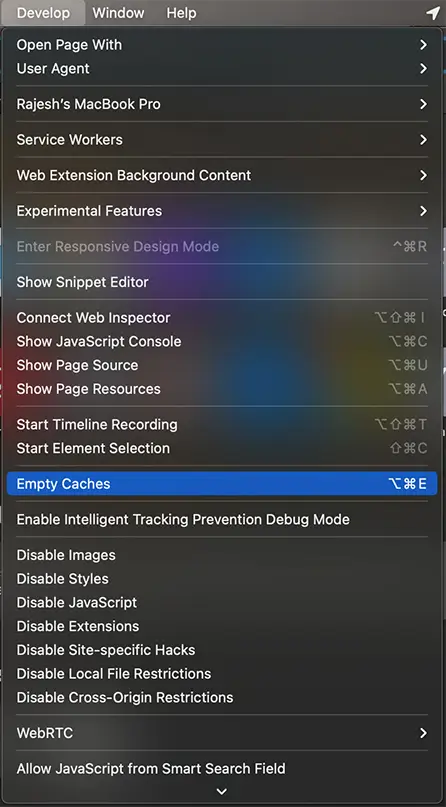
- Step 2: Clear Cache
- From the top menu, click Develop
- Select Empty Caches

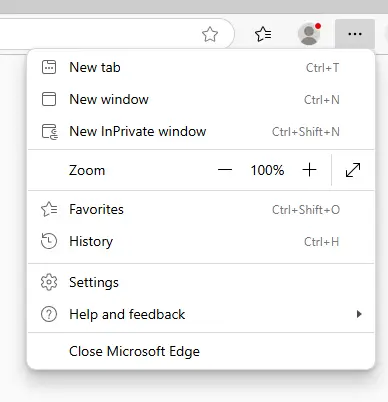
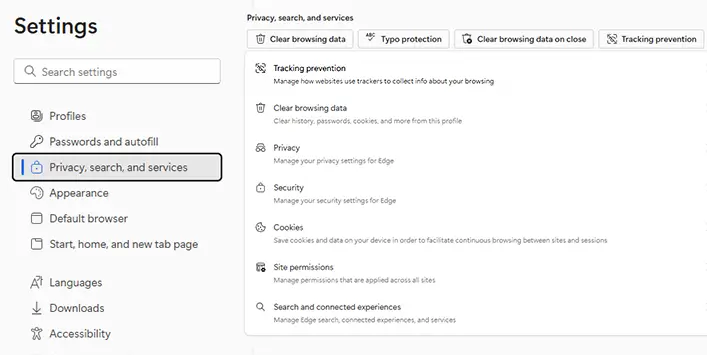
- Go to Settings
- Select Privacy, search, and services
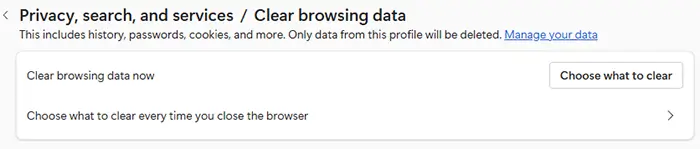
- Click on Clear browsing data
- Under Clear browsing data, click Choose what to clear
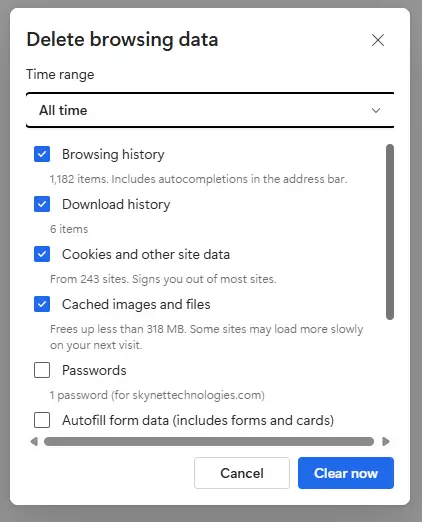
- Select Time range All time (or as needed)
- Check Cached images and files (Uncheck other options if you only want to clear the cache.)
- Click Clear now
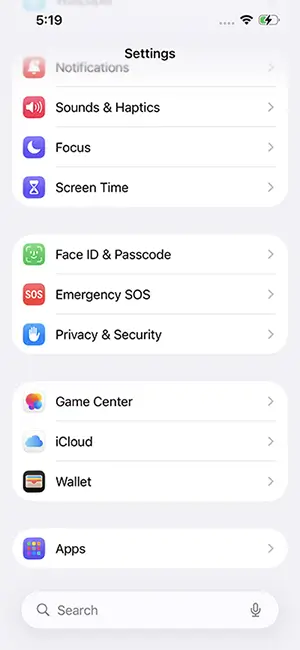
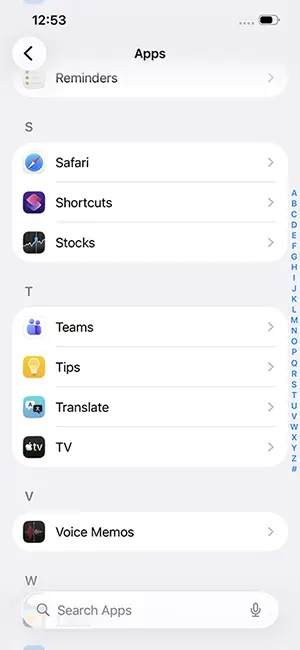
- Open the Settings app
- Scroll down and tap Safari
- Tap Clear History and Website Data
- Tap Clear History and Data to confirm
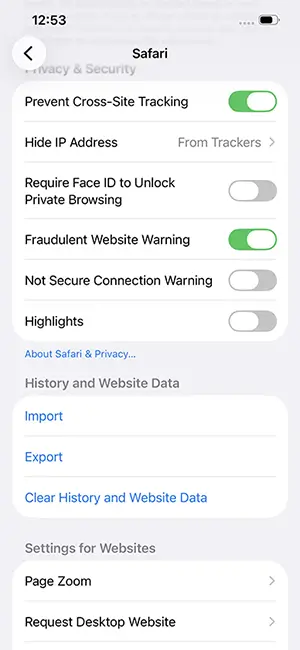
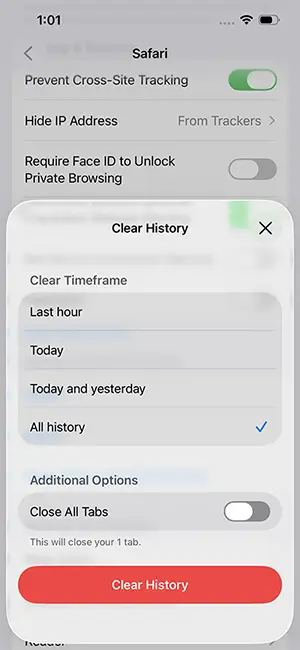
- This clears cached files and reloads the latest version of websites
- Clear Cache for a Specific Website (Optional)
- Go to Settings → Safari
- Tap Advanced → Website Data
- Search for the website
- Swipe left on the site name and tap Delete
- Go to Settings
- Select Privacy and security
- Tap Clear Browsing Data
- Select Time Range All Time (or as needed)
- Check Cached Images and Files (Uncheck other options if you only want to clear cache.)
- Tap Clear Browsing Data (Delete data)
- Confirm by tapping Clear Browsing Data again