Voice Navigation
Voice Navigation in All in One Accessibility is a feature that allows users to interact with and navigate through websites using voice commands. It is designed to assist users with disabilities, particularly those with visual impairments, by providing an alternative method to control their browsing experience.
Voice Navigation works by recognizing and interpreting spoken commands from the user. These commands are then translated into actions on the website, such as clicking links, scrolling, or entering text. It uses speech recognition technology to accurately understand and respond to user inputs.
Voice Navigation provides several benefits, including:
- Enhanced accessibility for users with visual impairments or motor disabilities.
- Hands-free navigation, which can be useful for users in various scenarios, such as multitasking or when manual control is not feasible.
- Improved user experience by offering an alternative method of interaction.
To enable Voice Navigation, look for the accessibility toolbar preference settings on the website that installed All in One Accessibility. There is an option to activate Voice Navigation. Once enabled, you can start using voice commands to navigate the site.
Yes, Voice Navigation is designed to support 50 multiple languages, allowing users from different linguistic backgrounds to utilize the feature. Check the accessibility settings to see the list of supported languages and select your preferred one. If there is any issue, reach out to us to report an accessibility problem.
To use Voice Navigation, you need a device with a microphone, such as a computer, tablet, or smartphone. Ensure your microphone is enabled and properly configured to capture your voice commands accurately. It is usually built in, if there is any problem with that, you can connect externally as well.
The accuracy of speech recognition can vary based on several factors, including background noise, clarity of speech, and the specific technology used. All in One Accessibility uses speech recognition algorithms to ensure high accuracy, but occasional errors may still occur. Speaking clearly and in a quiet environment can improve recognition accuracy. If you are receiving any issue, reach out to us via report an accessibility problem.
No.
If Voice Navigation is not functioning properly, try the following troubleshooting steps:
- Ensure your microphone is enabled and functioning.
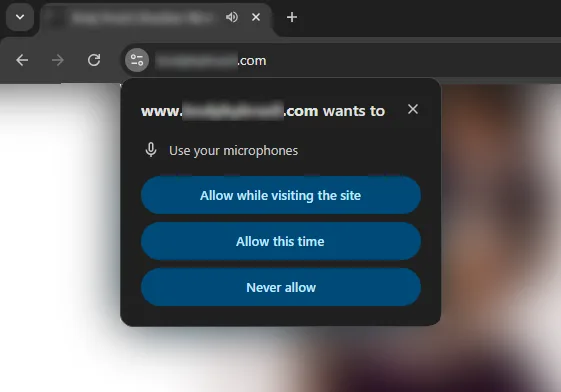
- Check that Voice Navigation is activated in the accessibility settings.
- Speak clearly and in a quiet environment.
- Refresh the webpage or restart your browser.
- Reach out to the support team for further assistance or report a problem.
Voice Navigation is typically offered as part of the All in One Accessibility paid subscription.
Yes, Voice Navigation is designed to complement other accessibility tools and features. Users can often use it alongside screen readers, keyboard navigation, and other assistive technologies to create a more comprehensive and flexible browsing experience.