


Scan your website free for Accessibility Violations!
Icon Type | Widget Color | Icon Size with Custom Size | Widget Position
Presuming you have already subscribed to our services and have access to dashboard credentials.
- Login to Dashboard
- Go to Widget Settings
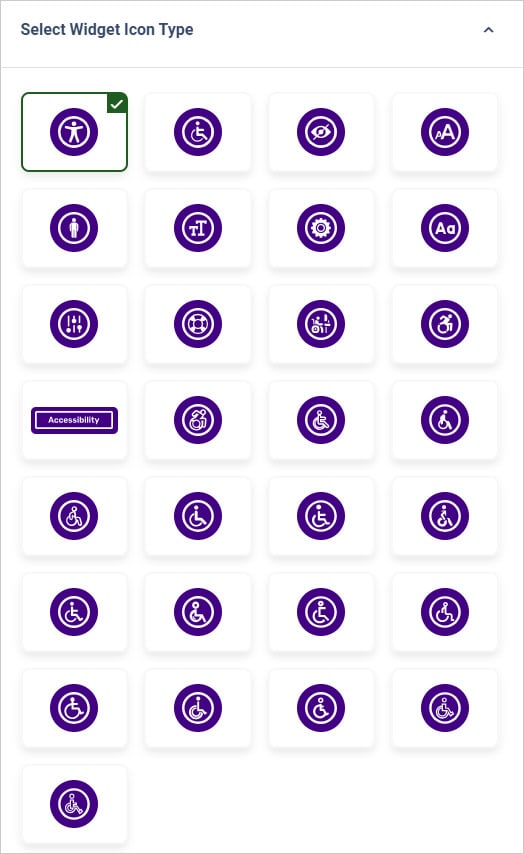
Select preferred Widget Icon Type and save settings.
- Login to Dashboard
- Go to Widget Settings
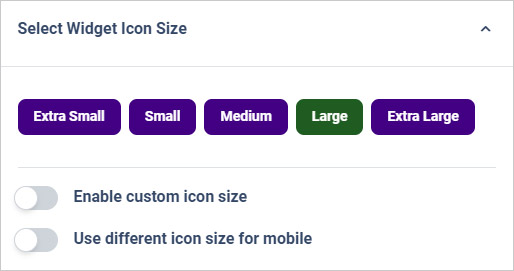
Select from available Desktop Icon Size or Enable icon custom size.
Yes. Please follow these steps:
- Login to Dashboard
- Go to Widget Settings
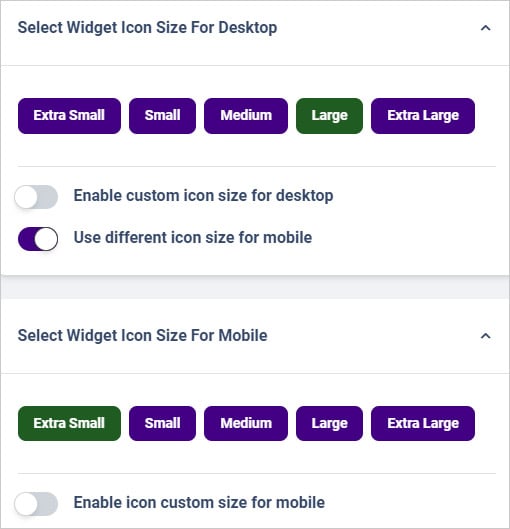
- Enable “Use different icon size for mobile”.
Input your preferred icon size and save settings.
- Login to Dashboard
- Go to Widget Settings
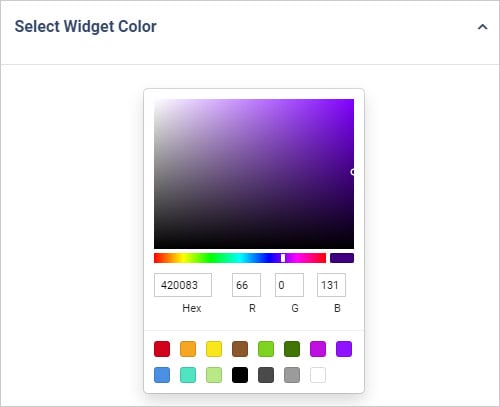
Select Widget Color and Save settings.
- Login to Dashboard
- Go to Widget Settings
Select Widget Position or enable precise accessibility widget icon position and Save settings.
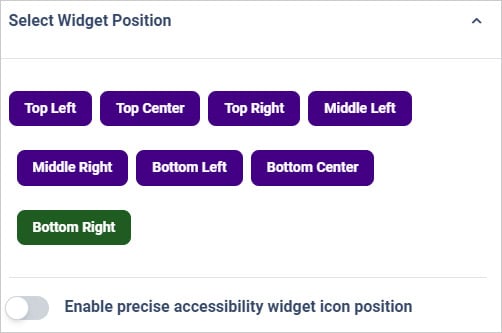
We recommend positioning widget at top left, top center, top right, middle left, middle right, bottom left, bottom center, and bottom right. Although, you can customize it as well anywhere you prefer.

Oversize and Regular.

Yes, you can enter custom accessibility statement link in widget settings.

Yes, you just need to enter GA measurement ID for Google Analytics tracking.

By setting up Adobe tracking Id in widget settings, you can track it.

Yes.
Yes, it can be adjusted within the dashboard.
Manage Widget Open/Close Sound
This feature allows to enable or disable the sound that plays when users open or close the All in One Accessibility® widget. It helps customize the user experience based on the website’s accessibility needs.
- Login at Dashboard
Select "Widget Settings"
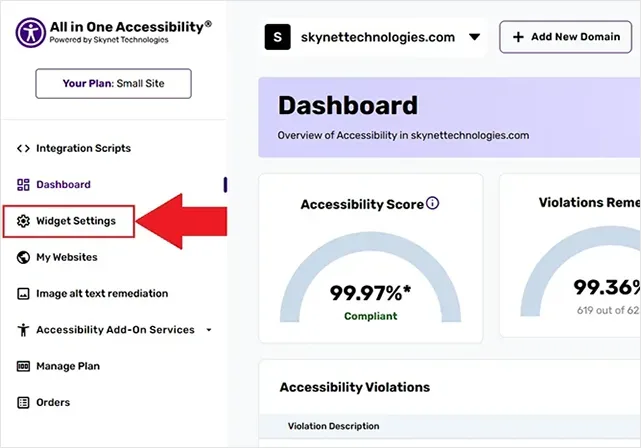
Enable / Disable Open/Close widget sound

Some users prefer a silent browsing experience or work in environments where sound may be distracting. Disabling the sound gives flexibility to make the widget more comfortable for your audience.
No. The sound file is lightweight and enabling or disabling it does not affect the website’s performance.
Yes. After toggling the feature, simply refresh the website and open/close the widget to hear how it behaves.
